I’ll make this one short, snappy and beginner friendly.
Windows 10 will stop receiving security updates 14/10/25 as microsoft is so benevolent, meaning more are switching to Windows 11 in preparation.
As the version number increases, so does the amount bloatware.
In this guide I’ll go over:
by Raphire
Install Win11Debloat
The instructions can be found on the project page Win11Debloat, or alternatively if you trust me, follow below
-
Click the windows button and type “Powershell”, right-click on it, and click run as administrator
-
Copy and paste the following code into it (Ctrl+C to copy, Ctrl+V to paste)
& ([scriptblock]::Create((irm "https://win11debloat.raphi.re/")))
Using Win11Debloat
You should now have a blue screen resembling:
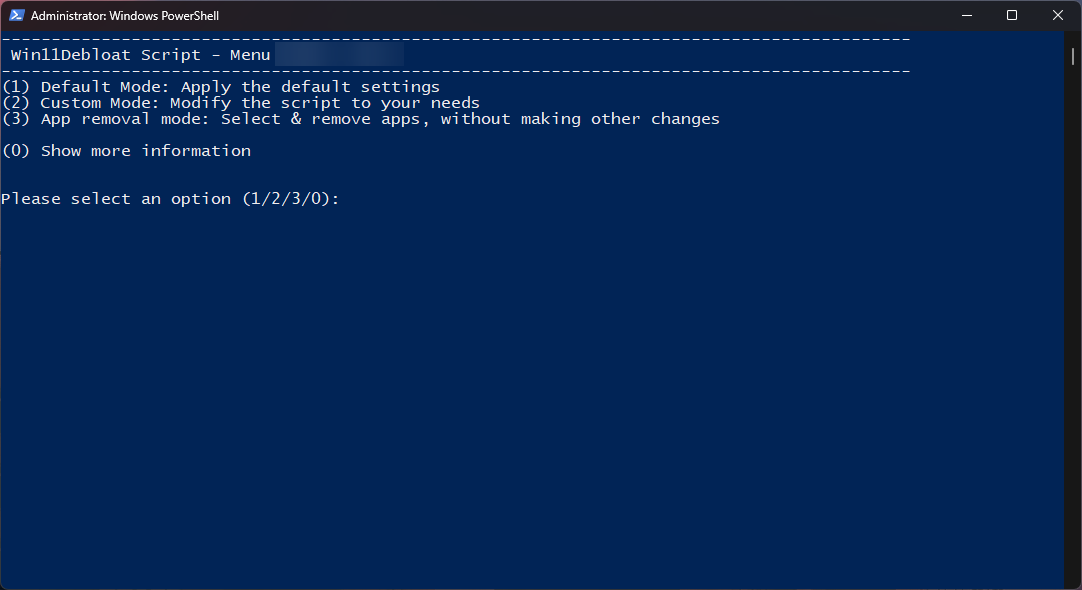
We will be selecting Custom Mode, so type 2 and then press Enter
This doesn’t need to be followed strictly, this is my setup. Change it how you please, if the program is updated you may get a different question, if in doubt select no change.
- Remove any pre-installed apps?
Type 2 and press Enter (alternatively if you are more advanced and want more control, choose 3)
- Remove all pinned apps from the start menu?
Type 2 and press Enter
- Disable telemetry, diagnostic data, activity history, app-launch tracking and targeted ads?
Type y and Enter
- Disable tips, tricks, suggestions and ads in start, settings, notifications, explorer and lockscreen?
Type y and Enter
- Disable & remove bing web search, bing AI & cortana in Windows search?
Type y and Enter
- Disable and remove Windows Copilot? This applies to all users
Type y and Enter
- Disable Windows Recall snapshots? This applies to all users
Type y and Enter (why did microsoft even add this)
- Restore the old Windows 10 style context menu?
Type y and Enter
- Do you want to make any changes to the taskbar and related services?
Type y and Enter
- Align taskbar buttons to the left side?
Type `n` and `Enter`
- Hide or change the search icon on the taskbar?
Type `1` and `Enter`
- Hide the taskview button from the taskbar?
Type `y` and `Enter`
- Disable the widgets service and hide the icon from the taskbar?
Type `y` and `Enter` *(who even uses widgets??)*
- Do you want to make any changes to File Explorer?
Type y and Enter
- Change the default location that File Explorer opens to?
Type `n` and `Enter`
- Show hidden files, folders and drives?
Type `y` and `Enter`
- Show file extensions for known file types?
Type `y` and `Enter`
- Hide the Home section from the File Explorer sidepanel?
Type `y` and `Enter`
- Hide the Gallery section from the File Explorer sidepanel?
Type `y` and `Enter`
- Hide duplicate removable drive entries from the File Explorer?
Type `y` and `Enter`
- Do you want to disable any context menu options?
Type n and Enter
- Press enter to confirm your choices and execute the script or press CTRL+C to quit.
Press Enter
And with a bit of luck, all went well and that’s over and done with. Long, I know.
Recommended Software
Many end up using terrible programs daily cough cough Chrome, or try to escape Chrome and end up using another chromium browser like Opera which is unironically worse.
I’ll explain the different software we will use firstly, then how to install it (using Ninite etc.)
Firefox (Browser)
For starters, don’t use chrome… Google Chrome — Spyware Watchdog
Especially not opera Opera — Spyware Watchdog, it’s literally owned by a Chinese company.
Chrome, Opera, Brave etc. are all based on chromium, which is Google’s “open-source” project. I highly recommend avoiding Google’s ecosystem, Firefox is built on Gecko (and it’s origins actually come from one of the first browsers)
See Browser setup for setting up firefox
Thorium (Browser)
Sometimes, Firefox doesn’t quite cut it. There may be sites that need a chromium based browser (rare), or sites that may just work better on chromium. Or perhaps you just want an easier profile manager (firefox profiles kinda suck, I’d recommend it’s container extension instead)
Thorium is a free & open source project. It’s very well optimised & has insane speed.
See Browser setup for setting up thorium
Notepad++
Must have. You can have multiple tabs of notes. It’s free & open-source. Use it for general notetaking or even edit scripts in there, with it’s language-syntax selection.
I’d enable dark mode through Settings > Preferences > Dark Mode
As well as enabling word wrap View > Wordwrap
7-Zip
There is no reason to use WinRAR, 7-Zip is free & open-source. No need to deal with the annoying pop-ups WinRAR presents you…
7-Zip allows you to extract .rar .7z .zip files it’s common to run into these, and you need software to extract them.
ShareX (Screenshots)
ShareX is another free & open source piece of software. I’m sure you’ve heard that phrase enough by now.
It is incredibly customisable, allowing you to capture regions, open it in the editor, copy it to clipboard, upload it to a site, save the file etc.
Also comes with pretty handy tools like a colour picker, QR scanner, OCR etc.
Paint.net (Editor)
Unlike the name suggests, Paint.net is definitely not where you download it.
Paint.net is an incredibly lightweight and versatile editor for making quick edits to images, I wouldn’t recommend it for professional usage, but it does the job when you want to quickly edit something. (Also supports extension packs)
VLC (Video Player) - Optional
VLC is a free & open-source video player. It’s reliable and versatile, able to play almost anything. The interface is a little outdated, but you are able to customise it with skins etc.
ImageGlass (Image Viewer) - Optional
You know it already, another free & open-source project.
ImageGlass is my chosen image viewer, it’s lightweight and just does the job… IrfanView is another alternative.
I have zoom on auto zoom, window fit enabled and the toolbar hidden (T)
WizTree - Optional
WizTree is a faster alternative to WinDirStat. You run it on a drive and it will show you in visual form which files and folders are using the most disk space. It’s incredibly convinient to find hidden large files/folders which you don’t use and just hog space.
Downloading the Programs
You have TWO options
Using winutilorUsing Ninite & install a couple manually
This allows us to quickly install programs without going to every website to download it
Using winutil
You can view the github here: winutil
-
Click the windows button and type “Powershell”, right-click on it, and click run as administrator
-
Copy and paste the following code into it (Ctrl+C to copy, Ctrl+V to paste)
irm "https://christitus.com/win" | iex
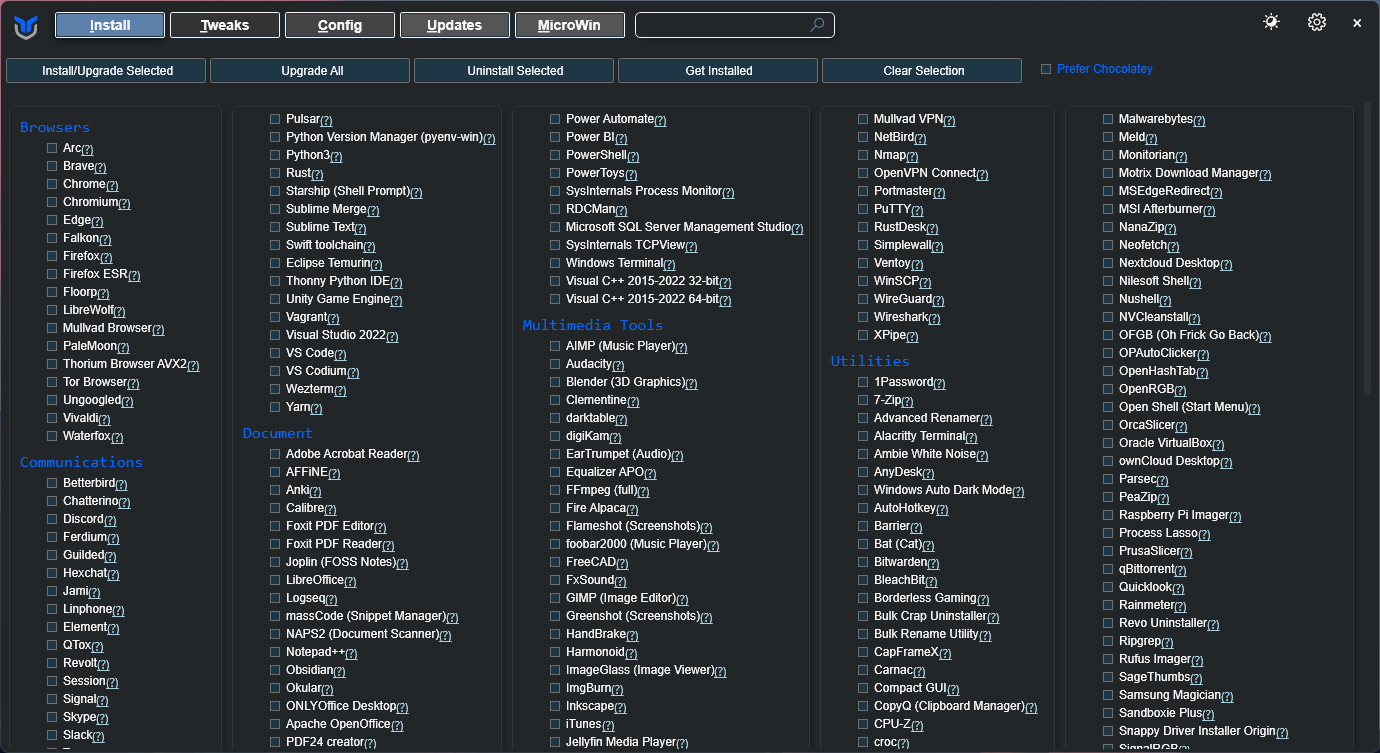
Once this appears, select the applications above Firefox, Thorium, Notepad++, VLC, 7-Zip, Paint.net, ShareX, ImageGlass, WizTree and hit Install/Upgrade Selected in the top-left
Using Ninite
With Ninite we will install: Firefox, Notepad++, VLC, 7-Zip, Paint.net, ShareX, WizTree
You can use this link to download them where they are already selected: download
Alternatively, you are welcome to customise it yourself if you want to add other programs (Steam, Python etc.)
Programs not on Ninite
The two programs not on Ninite are Thorium and ImageGlass
Thorium
To install thorium, go to their github released page: Thorium Releases
Scroll down until you see Assets with a list of files, click the one which says thorium_AVX2_mini_installer.exe run the file and if a security pop up appears click More Info and then Run anyway
Wait a minute or two for it to install, you should then be able to press the windows button type “Thorium” and open it, I would NOT sign in.
ImageGlass
Download a STABLE version of ImageGlass here: ImageGlass Releases
Make sure to click Get ImageGlass Classic and not the one from the Microsoft Store.
Then click Installer and run the file, you may have to download .NET, if you open the program it should prompt you to install it, just download and run it, then run ImageGlass again.
I recommend enabling Window Fit click the three lines and enable it for click F9, then click G to hide the gallery view at the bottom and T to hide the bar at the top.
Browser Setup
Firefox
Don’t sign in, link your phone, or use pockets etc.
Settings
about:preferences or 3 lines > Settings
General
-
Always ask you where to save files -> Enable
-
Recommend extensions as you browse -> Disable
-
Recommend features as you browse -> Disable
Home
-
Shortcuts -> Disable
-
Recommended stories -> Disable
Search
-
Default Search Engine -> DuckDuckGo
(add !g in the search to make it Google if needbe)
Privacy
-
Tell web sites not to sell or share my data -> Enable
-
Send web sites a “Do Not Track” request -> Enable
-
Ask to save passwords -> Disable
(ALWAYS use a password manager instead e.g. Bitwarden)
-
Show alerts about passwords for breached web sites -> Disable
-
Save and fill payment methods -> Disable
-
Allow Firefox to send technical and interaction data to Mozilla -> Disable
-
HTTPS-Only Mode
- Select
Enable HTTPS-Only Mode in all windows
- Select
-
DNS over HTTPS
-
Select
Increased Protection -
Set provider to Custom and enter
9.9.9.9(this is Quad9’s DNS)
-
Aesthetics
-
Right click the icon in top left (folder looking icon) -> Remove from toolbar
-
Right click on the two icons on the left of the extension icon (the jigsaw) in the top right -> Remove from toolbar
-
Right click the Import Bookmarks bookmark in the top left -> Remove from toolbar
Extensions
about:addons or 3 lines > Add-ons and themes
-
uBlock Origin
Lightweight adblocker - https://addons.mozilla.org/en-GB/firefox/addon/ublock-origin/
-
Bitwarden
Password manager - https://addons.mozilla.org/en-GB/firefox/addon/bitwarden-password-manager/
-
Enhancer for YouTube
Adds more options to YouTube - https://addons.mozilla.org/en-GB/firefox/addon/enhancer-for-youtube/
-
Simple Translate
Quickly translate selected text by selecting and right clicking - https://addons.mozilla.org/en-GB/firefox/addon/simple-translate/
-
DuckDuckGo Privacy Essentials
Would recommend enabling the email protection within the settings - https://addons.mozilla.org/en-GB/firefox/addon/duckduckgo-for-firefox/
You can click the extension icon (jigsaw) and right click on an extension e.g. Bitwarden and click
Pin to Toolbarfor easier access
Thorium
Don’t sign in etc.
Settings
chrome://settings/ or 3 lines > Settings
You and Google
-
Sync and Google Services
-
Allow Thorium sign-in -> Disable
-
Improve search suggestions -> Disable
-
Autofill and passwords
-
Password Manager
-
3 Lines (top left) -> Settings
-
Offer to save passwords and passkeys -> Disable
-
Sign in automatically -> Disable
-
-
-
Payment methods
-
Save and fill payment methods -> Disable
-
Allow sites to check if you have payment methods saved -> Disable
-
-
Addresses and more
- Save and fill addresses -> Disable
Privacy and security
-
Security
-
Warn you if a password was compromised in a data breach -> Disable
-
Always use secure connections -> Enable
-
Search engine
- Change -> DuckDuckGo
Downloads
- Ask where to save each file before downloading -> Enable
Extensions
chrome://extensions/ or 3 lines > Extensions > Manage extensions
-
Bitwarden
Password manager - https://chromewebstore.google.com/detail/bitwarden-password-manage
Best Practises
-
Third-party antivirus software isn’t really needed
Microsoft Defender unironically does a good enough job, don’t download random untrustworthy executeable files (.exe’s) and you will be fine
-
Clear up your taskbar a little bit
Right-click on your taskbar, select
Taskbar settingsand turn the majority of icons off, looks cleaner.
and ur done!